


How to create a proposal and vote in the DAO
A step-by-step guide for proposal owners and masternode operators using Cosanta Core.
Create a funding proposal
Prepare a public description, payment schedule, and receiving address, then create the proposal in Cosanta Core.
-
01
Open Governance
Open the Governance tab and click Create Proposal.
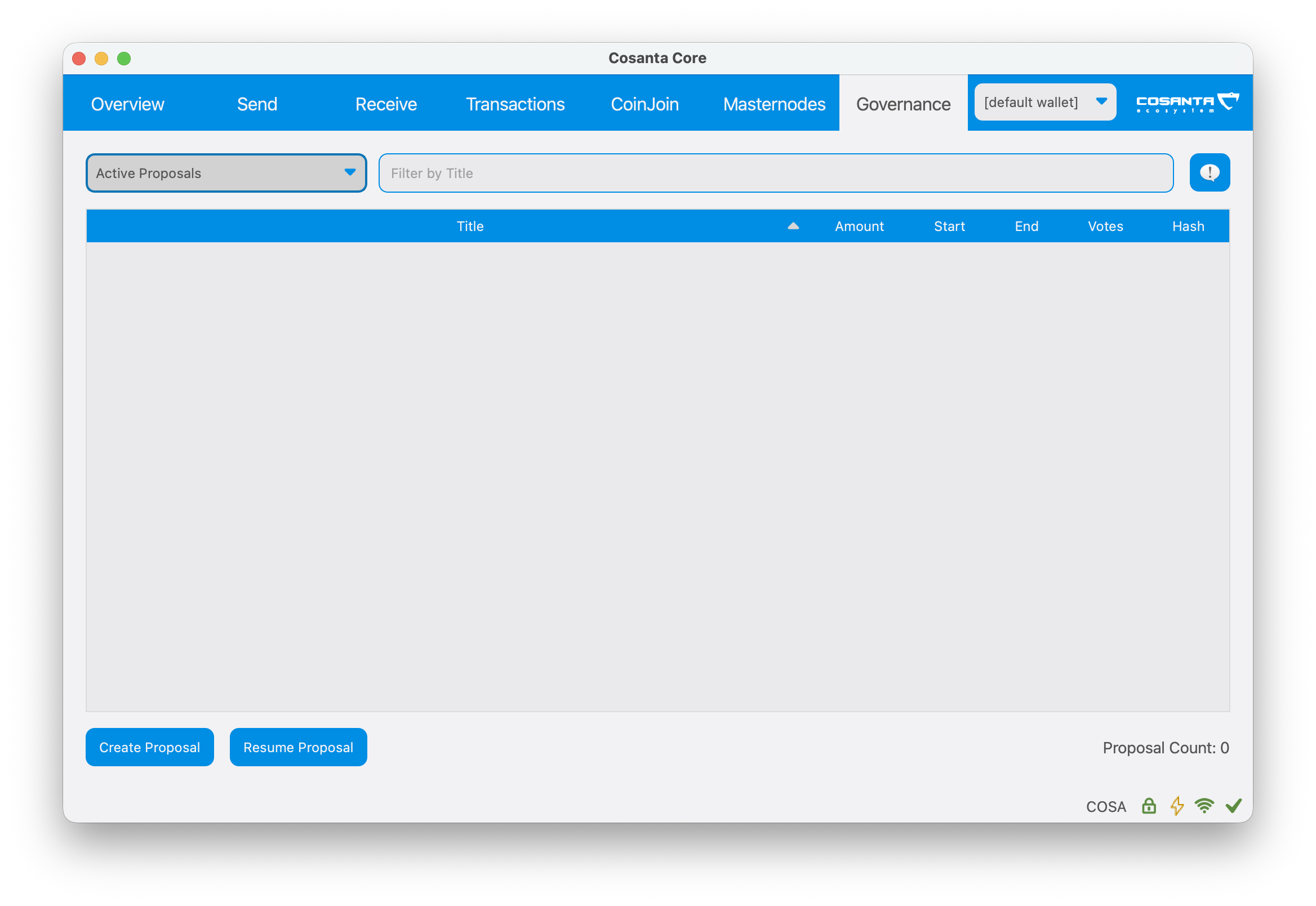
Governance → Create Proposal -
02
Complete New proposal
Fill in every field carefully. The amount of each payment and the number of payments are entered separately; the total is calculated automatically.
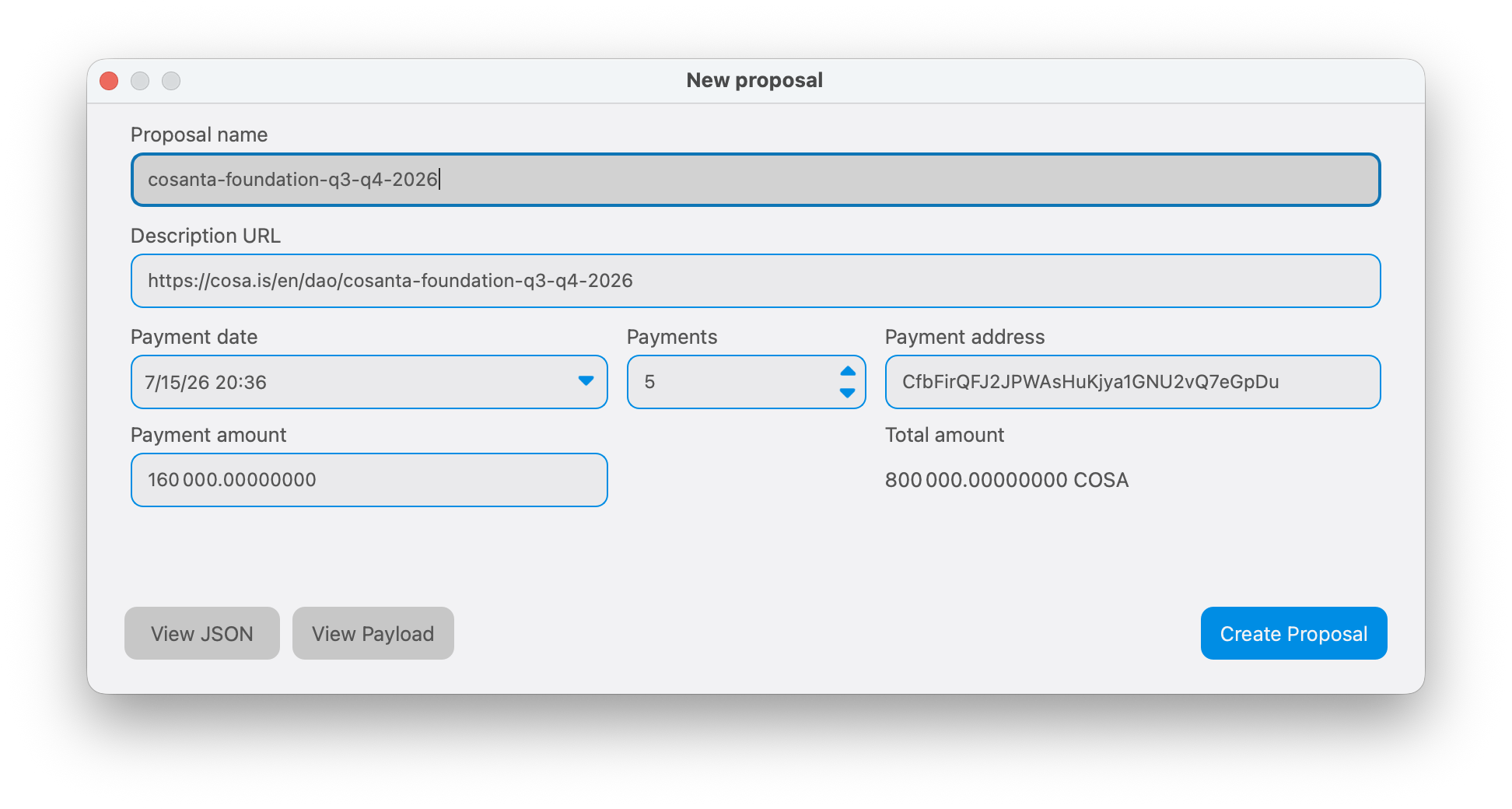
Proposal details and payment schedule Proposal name
A short, unique Latin-character identifier, for example project-name-q3-2026.
Description URL
A public HTTPS link to the full proposal description.
Payment date
The requested start date and time for payments.
Payments
The number of recurring payments across budget cycles.
Payment address
The COSA address to which the DAO will send funds. Make sure you control it.
Payment amount
The amount of one payment in COSA, not the total for the entire period.
Total amount
The total amount: one payment × number of payments. The wallet calculates it.
View JSON / View Payload
A technical preview of the proposal data before submission.
-
03
Confirm the 1 COSA fee
Click Create Proposal, review the warning, and confirm with Send.
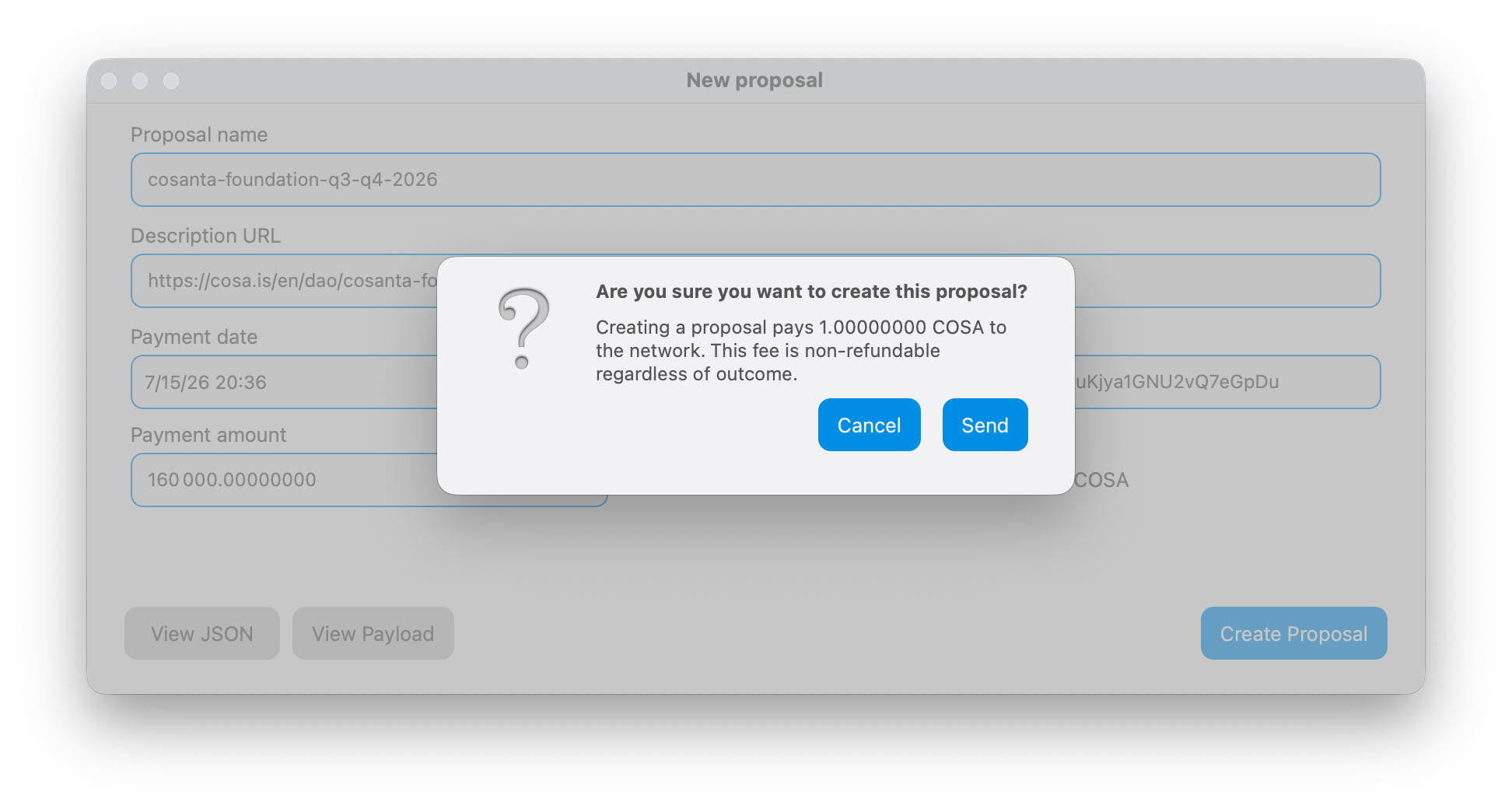
The wallet shows the fee again before sending 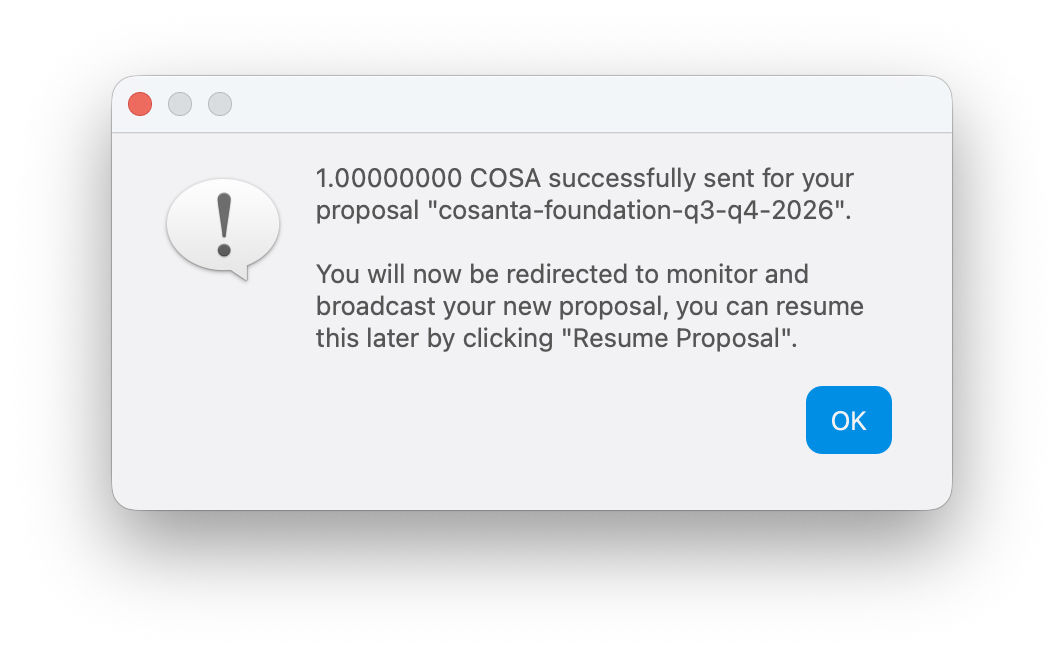
The fee transaction was created successfully -
04
Wait for confirmations and publish
After the fee is sent, the wallet opens the proposal monitor. You can close it and return later through Resume Proposal.
- Collateral Status: Pending
- The 6 confirmations apply only to the 1 COSA fee transaction. They prepare the proposal for broadcast but do not publish it or open voting yet. The current progress is shown in the proposal list.
- Ready to broadcast
- After the sixth confirmation, a blue icon appears beside the proposal. This means it is prepared, but voting is not available yet. Click Resume Proposal and use Broadcast to send the proposal itself to the network and start voting. After a successful broadcast, the icon changes from blue to red; only then is the proposal available for voting.
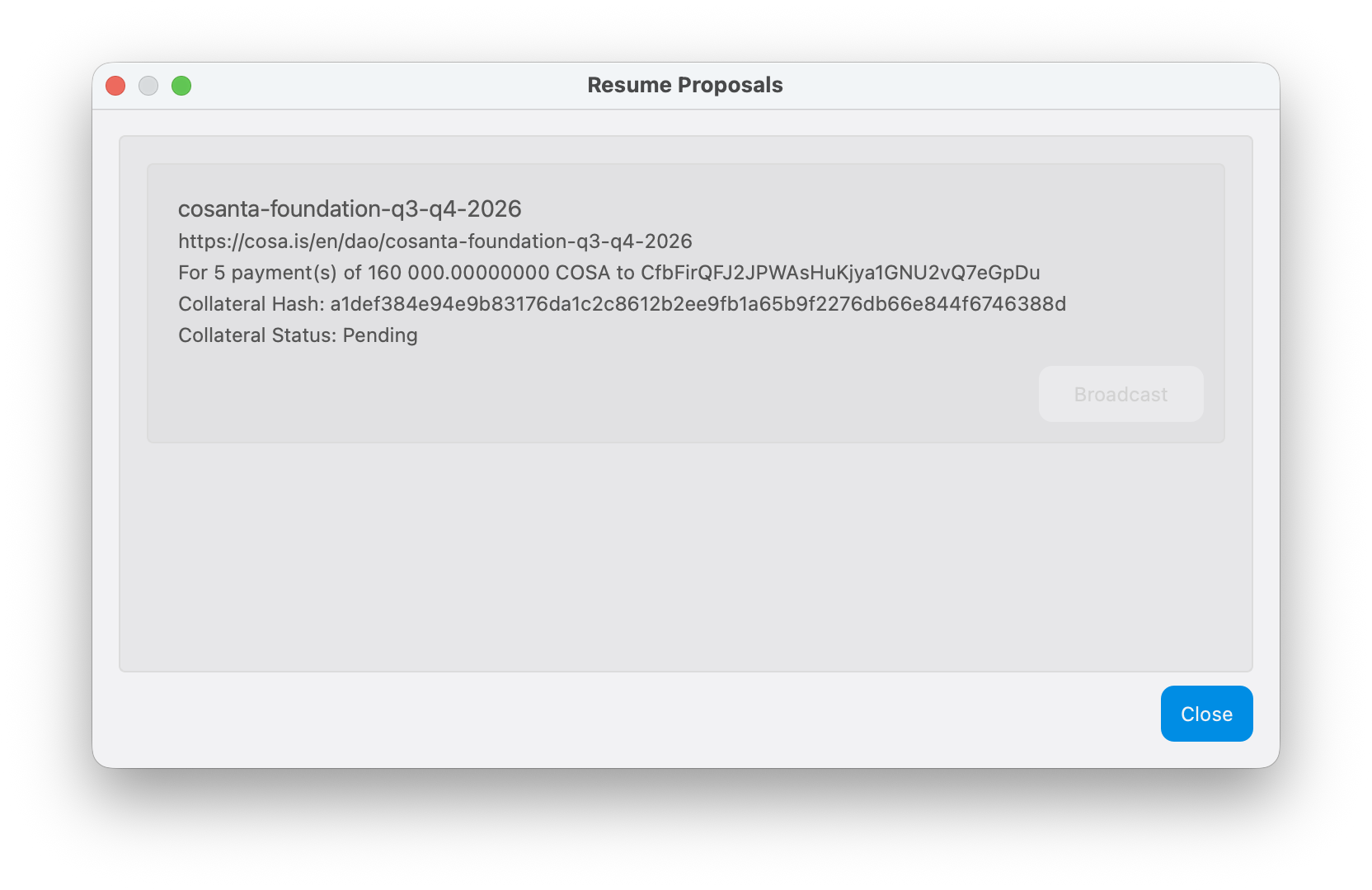
Waiting for confirmation of the fee transaction 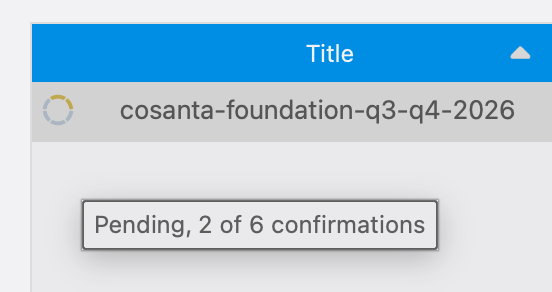
6 network confirmations prepare the proposal for broadcast 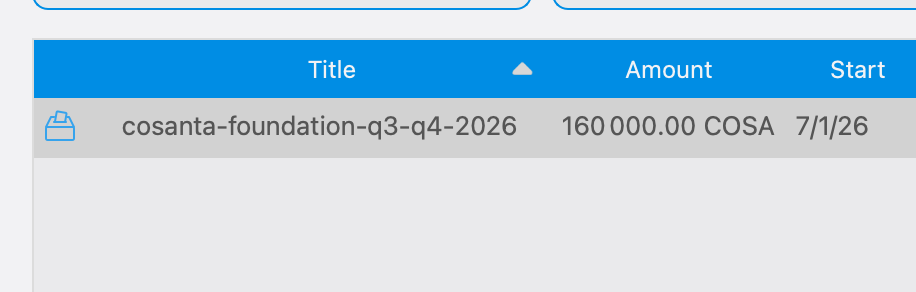
Blue icon: the proposal is prepared. Click Resume Proposal to broadcast it to the network
Vote on a proposal
A masternode operator can support a proposal, reject it, or abstain.
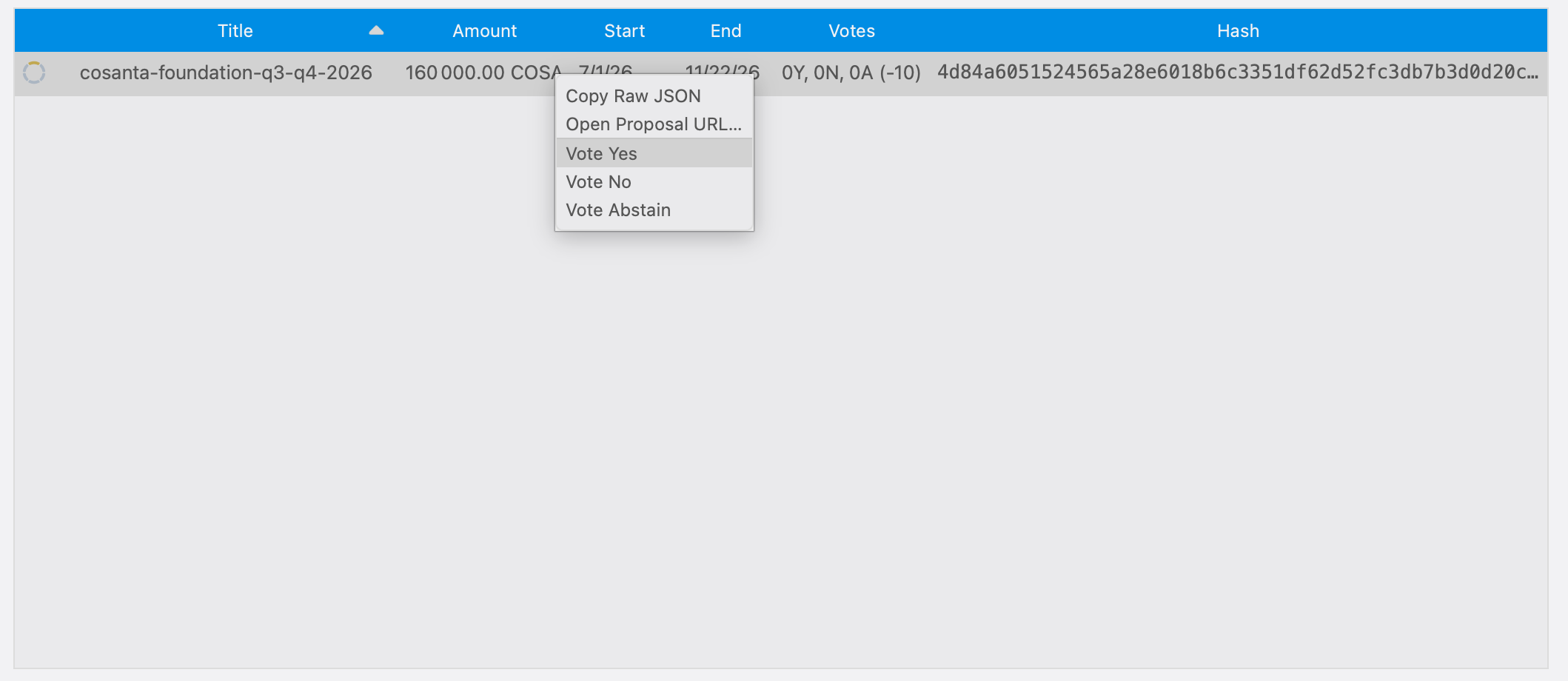
In Governance, right-click the proposal row and select the required option.
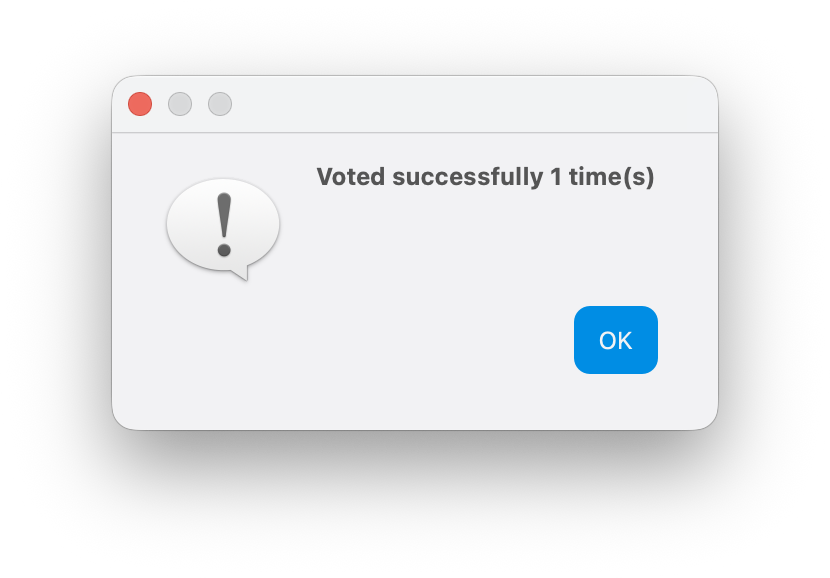
Once the icon turns red, you can vote. Select an option; the Voted successfully message confirms that your vote was sent to the network.
Check the budget and voting threshold

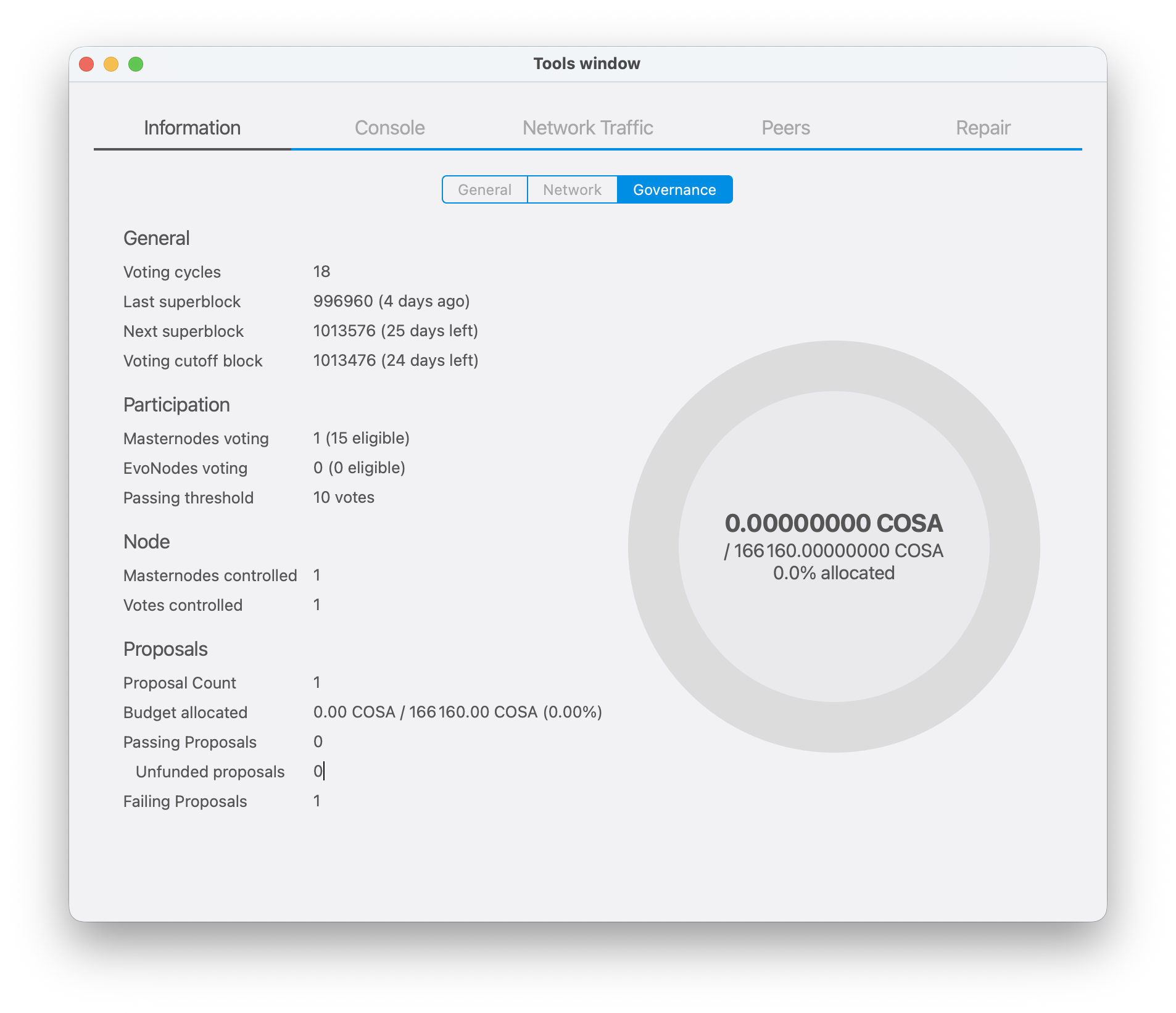
Click the button with the exclamation-mark icon in Governance. The wallet opens Tools window → Information → Governance.
- Budget allocation
- The Proposals section and the chart show how much COSA has been allocated to passing proposals and the total budget available in the cycle.
- Passing threshold
- Shows how many votes a proposal must receive to pass in the current voting cycle.
Check everything once more
A network proposal cannot simply be edited after submission.
- The proposal page opens without authentication and will remain available throughout voting.
- The description covers the objective, benefit to Cosanta, work stages, budget, timing, team, and expected outcome.
- The receiving address is correct and you control its keys.
- The first payment date, number of payments, and amount per payment match your request.
- You understand that the 1 COSA fee is non-refundable.